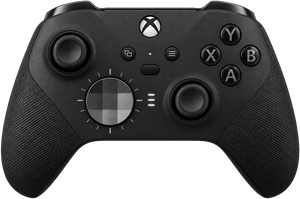
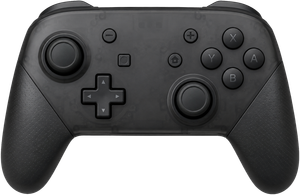
A Mac app for the controller you already own

A mouse needs a desk.
Your controller doesn't.

Steer turns it into a mouse and keyboard: point and click, type, scroll, arrange windows, reach an app's own menus. You stop getting up.

Plug it in, grant one Mac permission, and it already works. Nothing to configure.

Join the launch list €19.99 once, when it ships. 14-day trial, no card, no account.
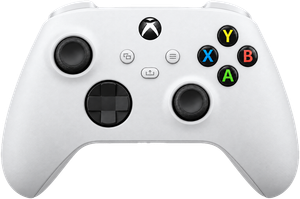
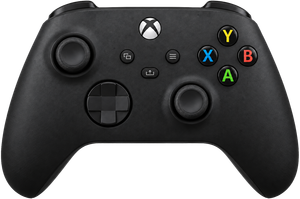
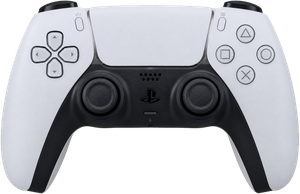
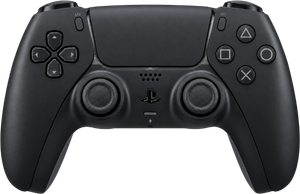
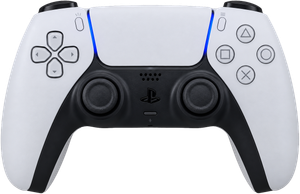
Pick your controller
+ FIRM TRIGGERSturn them on and they push back
+ TOUCHPADtaps and gestures, like a trackpad
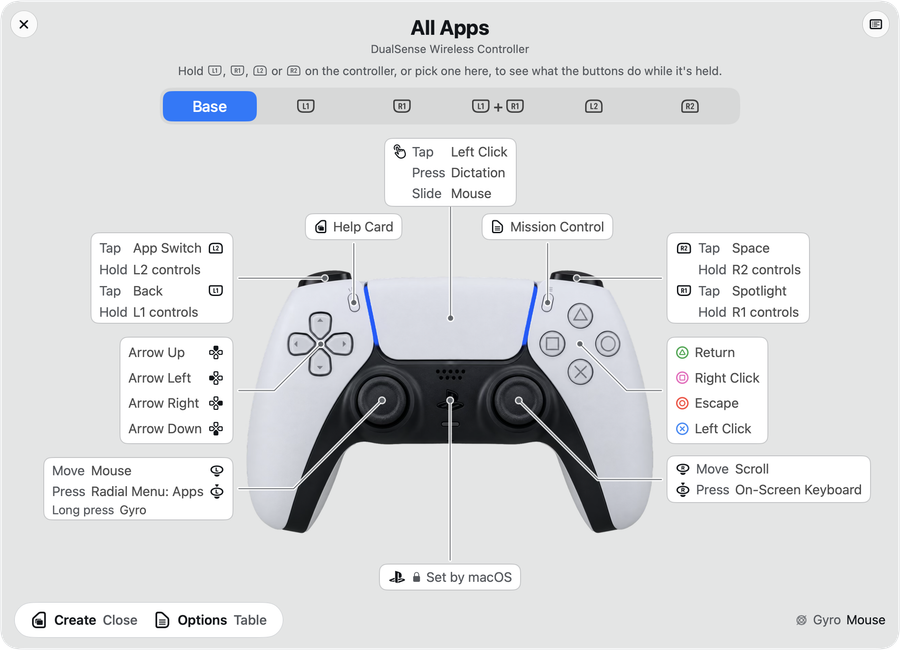
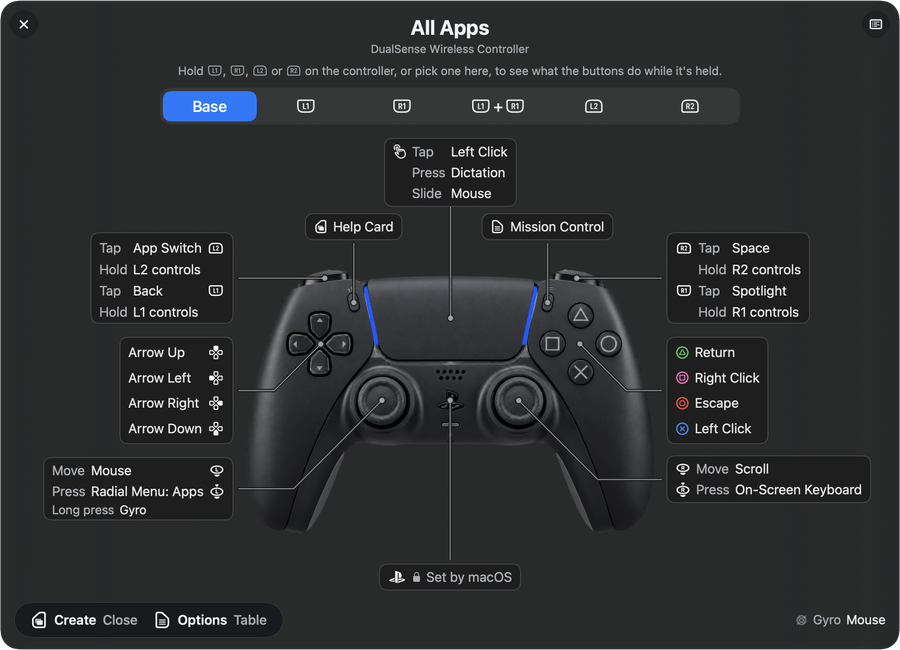
LEFT STICKmoves the cursor, smooth and steady
+ TILT TO POINTaim by moving your hands, not a stick
HOLD ONE BUTTONlike Shift: every other button changes
EVERY BUTTONany shortcut, app, or saved task
RIGHT STICKscrolls the page, at your speed
A QUIET BUZZat the volume ceiling, and as you flip through apps
HOLD ONE BUTTONlike Shift: every other button changes
LEFT STICKmoves the cursor, smooth and steady
ARROW BUTTONSvolume, skip, anything you choose
EVERY BUTTONany shortcut, app, or saved task
TWO BUTTONSpress two at once: one more job
RIGHT STICKscrolls the page, at your speed
A QUIET BUZZat the volume ceiling, and as you flip through apps
HOLD ONE BUTTONlike Shift: every other button changes
LEFT STICKmoves the cursor, smooth and steady
ARROW BUTTONSvolume, skip, anything you choose
+ TILT TO POINTaim by moving your hands, not a stick
EVERY BUTTONany shortcut, app, or saved task
RIGHT STICKscrolls the page, at your speed
A QUIET BUZZat the volume ceiling, and as you flip through apps
HOLD ONE BUTTONlike Shift: every other button changes
LEFT STICKmoves the cursor, smooth and steady
ARROW BUTTONSvolume, skip, anything you choose
EVERY BUTTONany shortcut, app, or saved task
TAP OR HOLDtwo jobs on the same button
RIGHT STICKscrolls the page, at your speed

The stick is the mouse. Press CrossABA to click.

315controllers recognised
35languages, help included
macOS 14+Apple Silicon
€19.99once, no subscription
What people use it for

Browse, write, edit, present.

A lap keyboard, a phone remote, a trackpad on the sofa arm: each does four things out of five, and the fifth sends you back to the desk. Typing, an app's own menus, moving windows, launching apps: they are all on the controller, so the trip back does not happen.

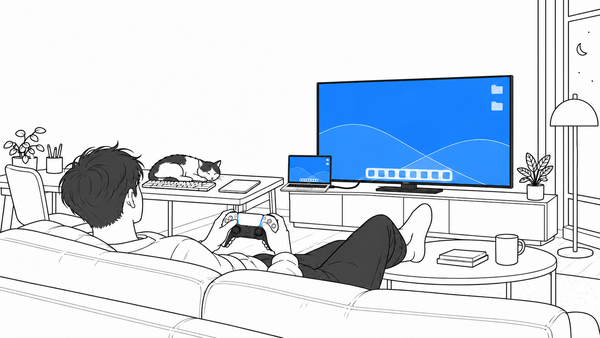
The couch

Run your whole Mac from the couch.

Browse, type, launch apps, play and pause: from the sofa, the bed, anywhere a mouse won't follow. The on-screen keyboard is a wheel: aim the stick at a slice of letters, tap a button under your thumb, and the search box fills without you getting up.

Stick + face buttonstype without getting up
Comfort & accessibility

When a mouse hurts, or never felt natural.

A controller rests in loose hands: nothing to pinch, no fine wrist work, no reaching across the desk. If sore wrists, tremor, pain, or using one hand make a mouse hard, this is a different shape to hold.

Comfort is personal, so the honest test is your own hands.

See the accessibility setup 
Cursor speedslow it right down
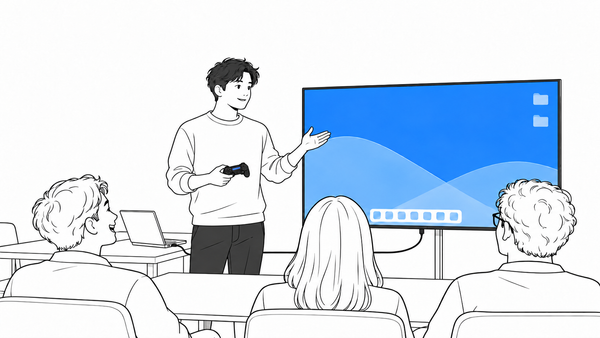
Speakers & teachers

Point at your slides from the back row.

Advance your slides from wherever you are standing, and move a bright dot onto the chart you are talking about. You never walk back to the laptop.

Right sticka dot on the screen
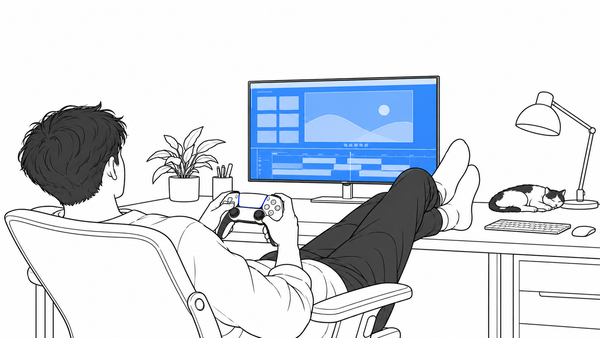
Video editors

Cut without touching the keyboard.

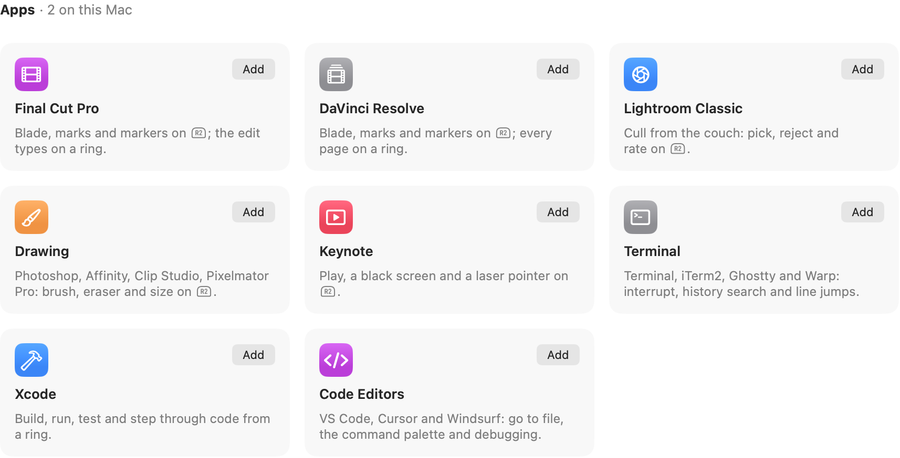
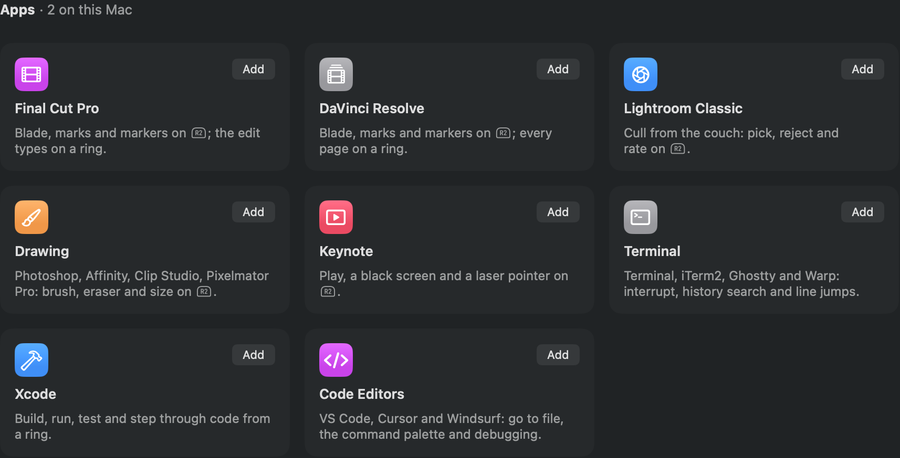
Scrub with the triggers: one rolls the video back, the other forward, and the cut lands under your thumb, the way a dedicated editing console does it, on the controller in your drawer. Ready-made for DaVinci Resolve and Final Cut Pro.

L2 / R2scrub and cut
And plenty more
Reading & browsing Writing & notes Coding & IDEs Design & Figma Running AI agents 
Nearly any app.

If it takes a keyboard or a mouse, it takes a controller.

Running coding agents?

A PlayStation pad can light up to show what the agent is doing, any pad with rumble can buzz when it needs you, and you approve from across the room. See the recipe 

The part you feel

The trigger stiffens before it clicks.You feel the step before you see it.Tilt the controller. The cursor follows.You know it worked without looking up.

You do not have to watch the screen to know it worked. Turn on the adaptive triggers and they stiffen under your finger, so you feel the click before it fires. The grip buzzes as you flip through your apps or hit the volume ceiling, and the light bar can mean whatever you want.Flip through your apps and each one lands as a pulse in your grip. Hit the volume ceiling and your hands know before the screen does. The chattier buzzes wait until you ask.Tilt your hands and the pointer follows: a second way to point, on top of the sticks. The rumble marks each app you flip past, and the volume ceiling.If your controller has haptics, Steer drives them: a pulse for each app you flip past, a tap at the volume ceiling, at a strength you set.

Adaptive triggersOff until you turn them on: feel the click before it fires. Five presets and a fine editor.
A buzzFor the moments that earn it, and more if you turn it on
A light barYou set yourself, or wire to signal your workflow
A buzzFor the moments that earn it, and more if you turn it on
RumbleOn the same moments, at a strength you set
Tilt to pointTilt the controller and the cursor follows
Haptic feedbackOn controllers that support it, at a strength you set
Try it: lock a colour, the whole page follows

See what your controller can do 

D-pad upthe volume ceiling
What it does

Make any button do anything.

It works the moment you plug in. Pick a button, pick what it does. No code, no setup first.


Your controller it reads the controller
Steer is the piece in between: applies the meaning you gave each button Work that belongs to another app, like dictation or moving a window, it hands over rather than reinventing.
Your Mac produces the same clicks and keystrokes a mouse and keyboard would

Layers are Shift, for a controller.

Hold one of the buttons along the top edge and every other button takes a second job, the way Shift turns 1 into an exclamation mark. Five holds, so a handful of buttons covers a whole day: snap a window into place, run a saved task, pop up a ring of your apps.

01Ready to useComes with a working layout, yours to change
02A worn controllerDrifting sticks re-centre on their own
03On-screen keyboardTypes where you can already type, no cursor to aim
04Longer textSpeak it: a button starts dictation, set up once with Apple's Shortcuts app
05A setup for each appChanges with the app you open
06Your mouse still worksThis adds a device, it does not replace one

Captured from the app; no renders, no touch-ups.

Built to be trusted

Your setup stays on your Mac.

Steer needs permission to move your cursor and type. Here is what it does with that access. Not a trust badge; the actual answer.

No account, no cloud, no tracking.

Anything risky is shown to you first.

Import someone else's setup and, if a button does more than press a key (opens a web page, runs a script), Steer shows you each one before it applies. You approve it, or it does not run. Scripts run from your own macOS scripts folder: an import can name one you already installed, not bring its own.

Steer's import review: three imported bindings, each tagged Opens URL beside the address it would open, with Cancel and Import buttons at the foot. Steer's import review: three imported bindings, each tagged Opens URL beside the address it would open, with Cancel and Import buttons at the foot.

Plain files, on your computer.

Your mappings live on your Mac, in a file you can open and read. No sign-in, nothing synced.

What you type stays on your Mac.

Steer goes online for three reasons. It checks your licence key when you enter it, then re-checks that key on launch and about once a day. It looks for an update when you ask. It fetches a setup only if you paste a link to one.

Changes can be undone.

Steer saves a restore point as you edit each settings pane, and keeps a history you can walk back through.

No private Apple code is linked in.

Apple published no recipe for some of what Steer does: real pinch and rotate, and speaking directly to a controller's triggers, rumble, and light bar. Steer works those out from scratch, linking no private frameworks, only the developer tools Apple publishes for everyone. The full technical account is written out, because hiding it would be worse.

What it can't do is written down too.

Where a controller can't do something, Steer hides it rather than pretending. The controller page marks the gaps, including the features nobody has yet confirmed on real hardware because I don't own the pad. Snapping windows into place needs the Rectangle app, installed separately. The login screen and Touch ID stay out of reach.

Works with the pad
you already own
See what yours can do 
Pricing

One price. Yours to keep.

19.99
paid once, no subscription
  • 14-day free trial at launch: no card, no account
  • Every feature your controller supports, included
  • Free updates as macOS changes
  • Direct from the developer, checked by Apple

Steer is in final testing. One email the day the free trial opens: one message, from me, and your address goes nowhere else. Name your controller and you hear first when a pad needs a tester.

Prefer email? steer@seanfloyd.dev works too.

Built for myself. I use it daily. Sean Floyd

Inside the app

Captured from the app; no renders, no touch-ups.

1 / 7
Sticks: per-layer modes and a cursor speed you shape yourself.
Buttons: a shortcut, an app, or a saved task on any button, tap or hold.
Profiles: a setup per app, switched for you.
Haptics and triggers: a switch per event, trigger presets and a fine editor (DualSense).
Light bar: set a colour, or wire it to signal your workflow (DualSense).
Gyro: tilt to aim, with a speed curve you tune.
Scripting: drive Steer from your own scripts, copy-paste ready.

Join the launch list

€19.99 once, when it ships. 14-day free trial: no card, no account. One email the day it opens, from me, and your address goes nowhere else.

Prefer email? steer@seanfloyd.dev works too.