
What else does it do? Everything you'd otherwise get up for.
It works the moment you plug a controller in. Everything below is there when you want it.
How do I switch apps? Press the left stick.
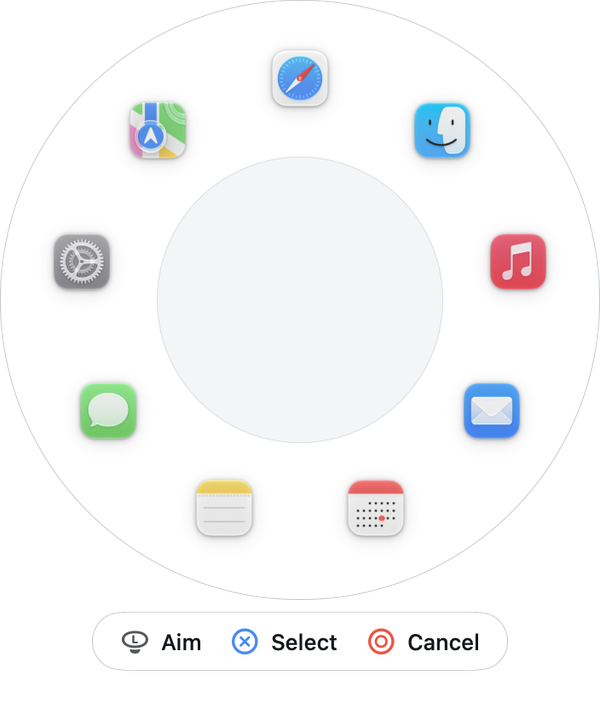
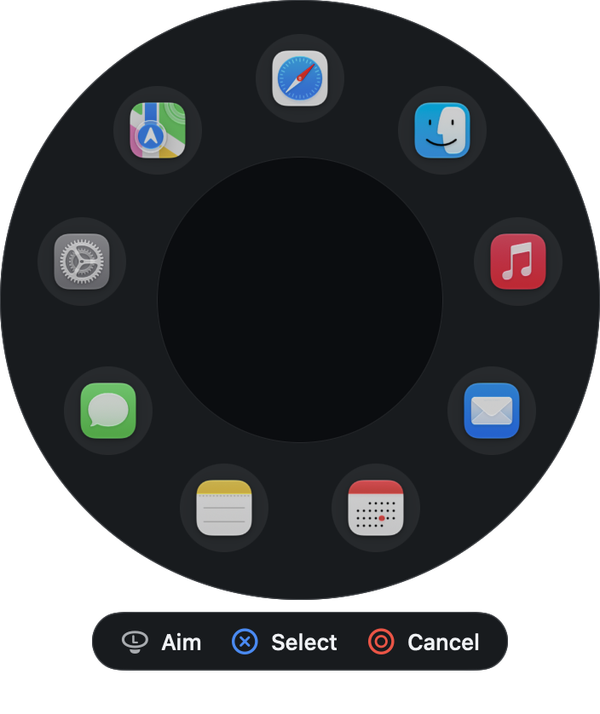
Your apps sit in a ring. Aim at one with the stick and press . Hold L1 and press the left stick for a second ring: Screenshot, Lock Screen, Show Desktop and more. Both are yours to change.
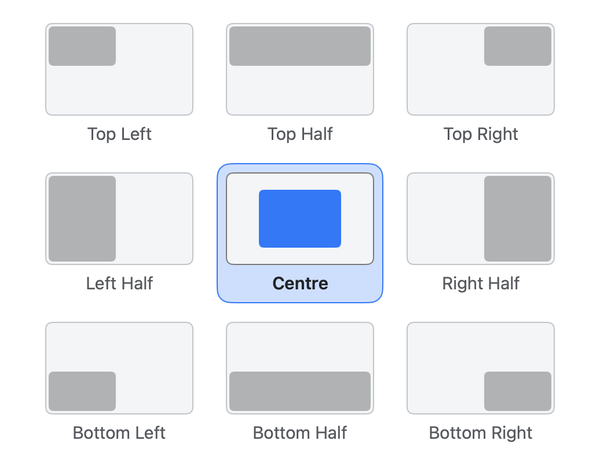
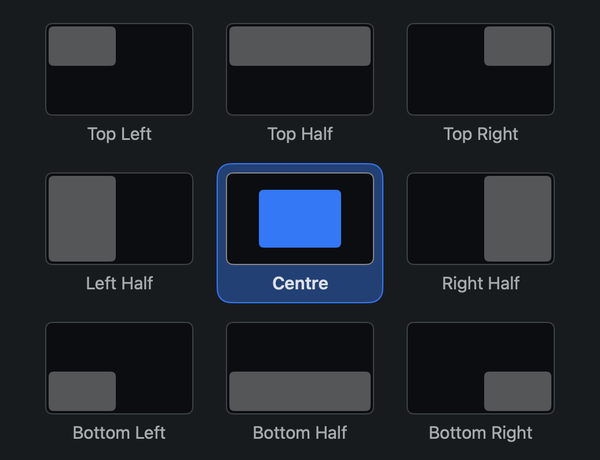
Can it move my windows? Window Snap has nine places.
Hold L1 and press , aim at a place, press . It works through the window apps Rectangle or Raycast if you have one, and through the Mac's own tiling if you don't (macOS 15 and later).
Will I know it worked without looking? It rumbles, and on a DualSense the triggers can push back.
A short buzz confirms what Steer just did. On PlayStation pads the light takes a colour for each layer, and on a DualSense the triggers can stiffen as you press.


What if I don't edit video? Drawing apps, Terminal, Xcode and code editors are set up too.
Each card gives a family of apps its own buttons. The Gallery also has rings for writing, Safari and the Mac itself, and blank rings for Keyboard Maestro and Hammerspoon.
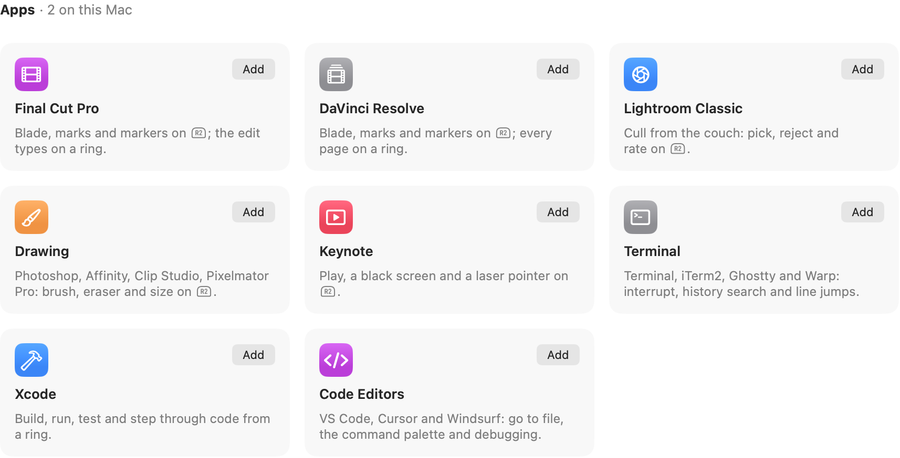
What else is in there? The whole list.
Point and click
- Move the pointer
- The left stick. Set its speed, how fast it builds, and how far you push before it moves.
- Click and drag
- clicks, right-clicks, is Escape, and holding drags.
- Scroll
- The right stick. A PlayStation touchpad can scroll or point instead.
- Tilt to aim
- Tilt the controller to steer the pointer, on pads with a gyro. On a DualShock 4 it's off by default and in beta.
- Worn sticks
- A stick that drifts is re-centred automatically.
Type
- On-screen keyboard
- Press the right stick. It suggests words as you go: R1 picks one, types it.
- Dictation
- Press the touchpad, or the left stick while the keyboard is open, and speak. The app you're using has to offer Dictation.
- Any keystroke
- Any button can send any key or combination.
- Saved text
- A button can type a phrase, an address or a snippet you use all the time.
Get around
- App menus
- Hold L1 and press Options to step through the menus of the app you're using, for commands with no shortcut.
- The usual keys
- Options opens Mission Control, R1 Spotlight, L2 the app switcher.
- Media and volume
- Hold L1: the D-pad sets the volume and skips tracks, R2 plays and pauses.
- Laser pointer
- A dot you move with the stick, for presenting to a room.
More from fewer buttons
- Ways to press
- One button can do one thing on a tap, another on a long press, another on a double tap, and repeat while held.
- Layers
- Hold L1, R1, L1 and R1, L2 or R2 and every other button changes job, the way Shift changes a keyboard. A layer can stay on so you're not holding anything.
- Button Combos
- Buttons pressed together, or one after another, can be their own command.
- Macros
- A recording of presses you play back from a button.
- The touchpad
- On PlayStation pads, a trackpad, a scroll surface, or zones that act as extra buttons.
- Sticks with other jobs
- A stick can scroll, press arrow keys, act as eight buttons, switch tabs or Spaces, or nudge a window.
Make it yours
- Your apps
- Each app can have its own buttons, and they change as you switch apps.
- Overrides
- Settings that apply on top of whichever app you're using. Pause overrides turns them all off for now.
- Clash warnings
- Steer warns when a button would send a shortcut the Mac already uses: the screenshot keys, Spotlight, the app switcher, Command-Q and Command-W.
- Undo and History
- Command-Z undoes an edit in Settings. History lists each change with where it came from, and can take you back to an earlier point.
- Share a setup
- Export yours as a file, or import someone else's. An import can point to a script you've already installed, but never brings its own.
- Your language
- 32 languages, machine-translated for now.
Wire it up
- Shortcuts and scripts
- A button can run an Apple Shortcut or a script, or open a link.
- Drive Steer from elsewhere
- 31 actions in Apple's Shortcuts app, and links other programs can open.
- Coding agents
- The controller can show and feel what an agent is doing. How that works
What it won't do
- The login screen
- Your password before the desktop loads is out of reach, and so is Touch ID.
- Pixel work
- Retouching and precise vector work need a mouse or a tablet.
- Long writing
- Use a keyboard. The on-screen one is for short entries.
- Every controller equally
- The controller page marks every gap, including pads nobody has confirmed yet.
Still wondering? The questions people ask.
Why not a wireless keyboard with a trackpad?
Is this a subscription?
Does it lag?
Does it drain the controller's battery?
Can I still use my mouse and keyboard?
Will I be able to read my screen from the sofa?
Why not the Mac App Store?
Does Steer rely on undocumented behaviour?
Can I get a refund?
Want to try it? We'll email you once.
When the 14-day trial opens. That's the only email.